
Gift cards: configuration and provider boundary
Use the audited issue and redemption ledger only after the salon configuration and any required funding provider are approved.
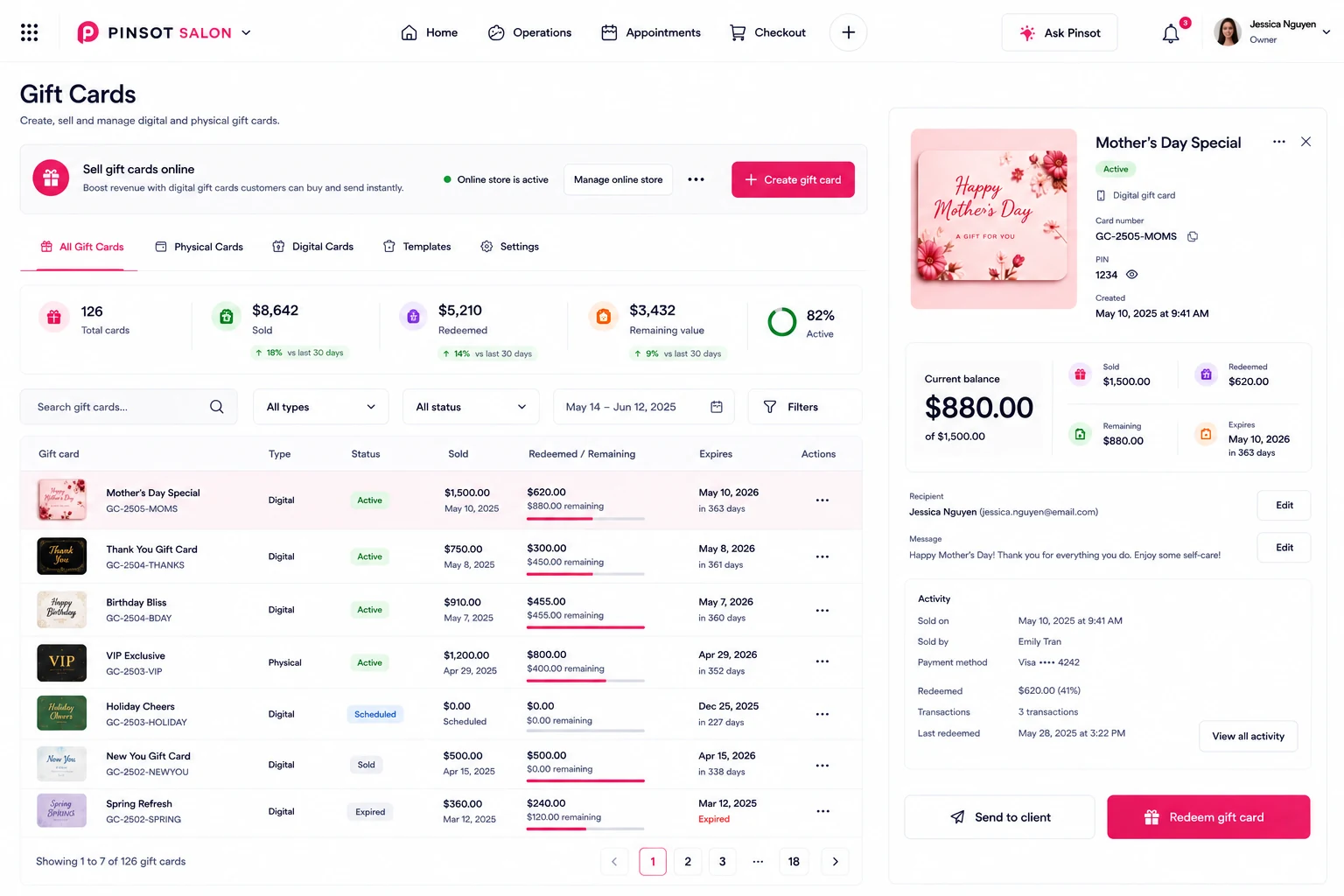
Salon → Gift cards
Prerequisites
- An individual authorized Pinsot account for the correct salon and location.
- The salon information, source record, or client instruction needed to complete the workflow accurately.
- Permission from the salon to make the described change or record the described action.
How to do it
- 1
Confirm Gift Cards is enabled for the correct salon and location and identify any approved funding provider.
- 2
Review the salon's existing balances, expiration rules, and legal disclosures before issuing or migrating value.
- 3
Issue or redeem through the visible Gift Cards workflow and wait for the server-confirmed ledger entry.
- 4
If funding is external, verify the provider acknowledgement separately from the Pinsot ledger result.
- 5
Reconcile the balance and audit history with the salon's source record before closing the request.
How location affects this task
The selected organization and salon location determine the records, settings, business date, and permissions used by this workflow. Confirm both before saving.
The gift cards: configuration and provider boundary workflow is recorded in the correct workspace and its visible result matches the salon's source information.
- Gift-card rules vary by jurisdiction and remain the salon's responsibility; Pinsot ledger availability does not guarantee external funding or settlement.
- Do not report funded value, settlement, or redemption as complete until both the Pinsot ledger and any required provider result are confirmed.
Troubleshooting
- If a control is missing, confirm the active salon, location, role, and feature status before retrying.
- Refresh or sign in again once, then stop repeating the action if the result is still unknown.
- Record the approximate time, safe error text, and affected workflow for support@pinsot.com; never include passwords, access codes, or full payment details.
If the steps do not resolve the issue, email support@pinsot.com from an address associated with your account. Include the salon and location names, approximate time, affected record, expected result, actual result, and safe error text. Remove passwords, verification codes, payment credentials, government identifiers, and unrelated client data.